
Understanding the Work Order Detail Screen
Why This Matters to Your Business 💼
Once a Work Order is created, the Work Order Detail screen becomes your operations control hub. It is where you track and manage every job-related activity: crew assignments, job site instructions, billing, documents, and more. This screen empowers your dispatch and back office teams to execute a move professionally from start to finish.
It also enables you to make real-time adjustments, view status updates, and ensure accountability at every level—no matter how many jobs you have going on. Mastering this screen means smoother dispatches, fewer mistakes, and faster job completion. ✅
.
.
How to Access the Work Order Detail Screen
There are three ways to open a Work Order Detail screen:
-
From the Work Orders screen (Operations > Work Orders):
- Double-click directly on a Work Order row.
- OR select the checkbox for a Work Order and click Edit from the action bar.
- Double-click directly on a Work Order row.
-
From the Job Schedule screen (Operations > Job Schedule):
- Click on a job from the calendar view.
- Then click the WO # to open the associated Work Order.
These entry points allow you to instantly view and manage all job details.
.
.
⬅️ Left Panel
This panel organizes all the foundational details about the job. Each section is clearly labeled to help your team quickly locate and update information.
🗂️ Job Overview
- WO Status and timeline
- Move Date & Time (start and end)
- Service Type (e.g., Local, Interstate)
- Activity (e.g., Pack, Load, LD Pickup)
👤 Customer Info
- Customer name and contact details
- Phone number and email
🔖 Work Order Info
- Work Request reference number
- Move Type, Move Size (if applicable)
- Volume/Weight (if available)
- Created Date, Earliest Date
📍 Origin/Destination
- Pickup and delivery addresses
- Live Google Map view
- Distance and duration calculation
👷 Crew Information
- Workers, Contractors, and Assigned Trucks
🧰 Tools & Equipment
- Notes for any tools or equipment to bring on the job
✏️ Each block includes a pencil icon if it's editable. Any updates will be logged automatically in the Logs tab.
.
.
📶 Work Order Statuses
The Status dropdown tracks the stage of the job. Crews will only see a Work Order if it has been published.
| Status | What It Means |
|---|---|
| New | Draft mode. Not visible to crew. |
| Confirmed | Job is ready. Shows on calendars. |
| In Progress | Crew has started the job. |
| Complete | Work is finished. Finalize billing. |
| Billed | Invoice sent to customer. |
| Payment Received | Full payment has been collected. |
| Cancelled | Job canceled and locked from changes. |
⚠️ Crews will only see the Work Order if it has been published.
.
.
➡️ Right Side Panel
The right side of the Work Order Detail screen gives you access to billing, payments, and customer-facing documents:
📄 Bill of Lading
- Click Download to export the official Bill of Lading for the move.
📋 Surveys
- Linked survey details from the job (e.g., pre-move surveys)
- View surveyor info and download the survey PDF
💳 Invoices
- See the total invoiced amount
- Check the invoice status (e.g., Sent, Paid)
- Invoices can be sent to customers, especially useful for long-distance moves or unpaid jobs
💵 Payments
- View all recorded payments (amount, method, status)
- Add new payments using the +Add link
- Payments can be unapplied, applied, or refunded
⭐ Rating & Review
- Add or edit the customer's review for this job
- Star rating and optional written comment
All actions here are logged and reflected in the job’s audit trail.
.
.
⬅️ Center Tab Panel ➡️
The center of the Work Order Detail screen contains key operational and financial tabs used to manage the job lifecycle.
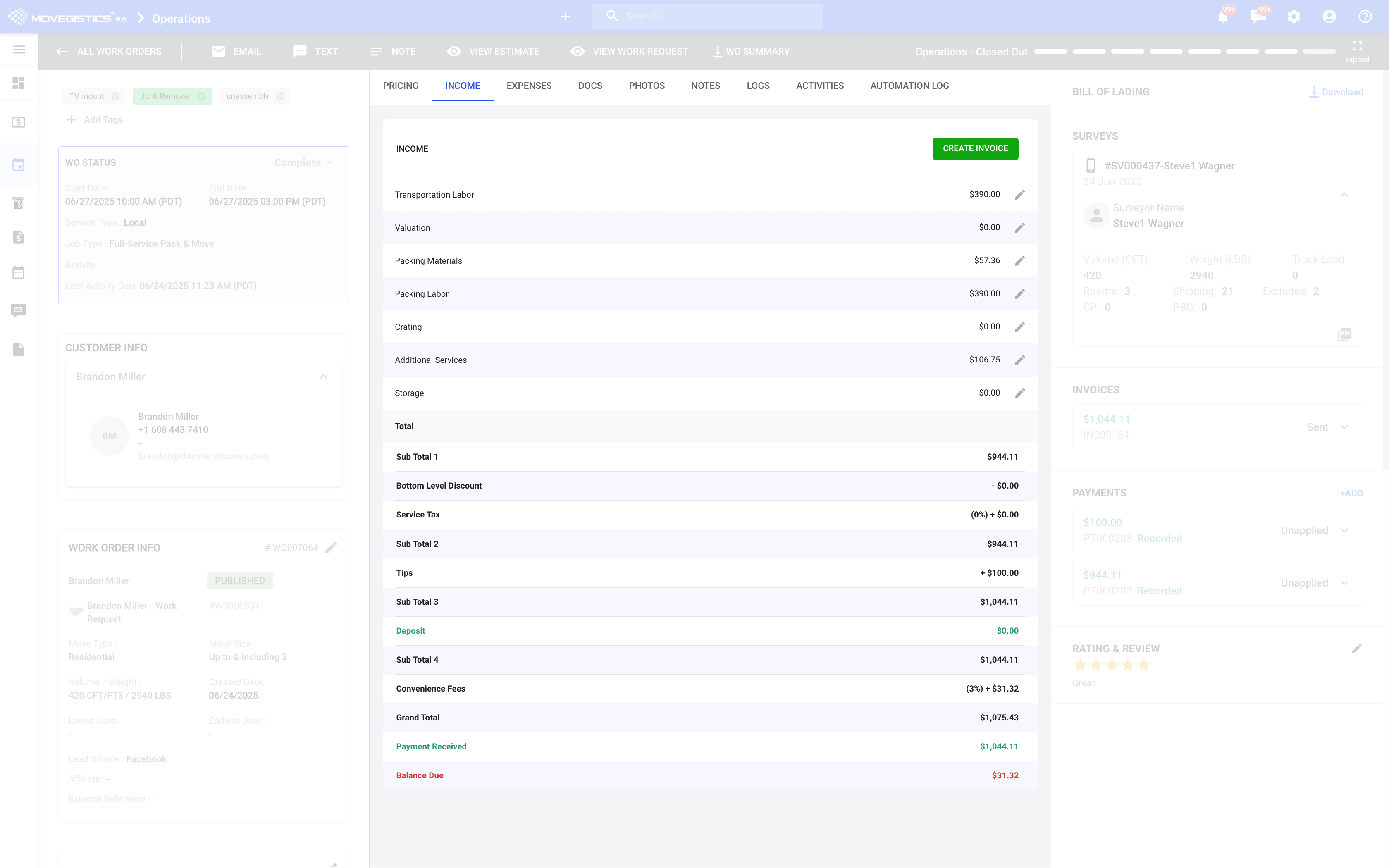
⚠️ Note: The Income and Expenses tabs require an estimate to be created first.
🗒️Pricing Tab
The Pricing tab is a core element where you view and control all billable services:
- Hourly Labor (or Flat Rate)
- Packing Charges
- Valuation Fees
- Travel Fees / LD Charges
- Fuel Surcharges
- Stairs, Shuttle, Storage, or Add-on Services
- Service Tax % (auto-calculated based on rules)
- Discounts (if applied manually or via templates)
✏️ Click the pencil icon next to any line item to directly edit that charge. This is how you finalize pricing after review.
The system automatically recalculates:
- Subtotal
- Tax
- Grand Total
All changes here impact customer invoices and reporting metrics. Do not forget to save!
💰 Income & Expenses
Track profitability and financial movement:
- Income tab shows payments collected and outstanding balance
- Expenses tab lets you record internal costs like crew pay, fuel, and materials
📁 Documents
Upload and manage supporting PDFs:
- Signed agreements, permits, COIs, and more
- Estimate PDFs and special access forms
- Stored for easy print/email from the Work Order
📷 Photos
Document job site visuals:
- Before/after images
- Damages, packing quality, BOL signatures
- Timestamped and exportable
📝 Notes
Create and tag notes for visibility control:
- Internal notes for office use
- Crew-specific instructions
- Customer-facing notes
- Customize visibility by role to keep communication clean
📊 Logs
Track the audit trail of the Work Order:
- Status updates
- Crew/truck assignments
- Payment activity
- Field edits by staff
📅 Activities
Keep tabs on scheduled or completed follow-ups:
- Post-job check-ins
- Internal callbacks
- Auto-generated or manually created reminders
⚙️ Automation
Review and manage triggered automations:
- Invoice reminders
- Crew alerts
- Payment follow-ups
- Disable or monitor email/text automations specific to this job
.
.
📆 Multi-Day Job Handling
If your estimate includes multiple job dates, each day gets its own Work Order. This allows dispatchers to:
- Assign different crews/trucks per day
- Track time and labor separately
- Invoice per service day if needed
🗓️ Example: Pack on Day 1, Load on Day 2, Deliver on Day 3 = 3 Work Orders from 1 Work Request
.
.
✏️ Editing Fields from the Detail Screen
Use the pencil icon ✏️ across different sections (Pricing, Job Info, Activity) to make edits.
These edits impact:
- What the crew sees
- What the customer is billed
- Payroll reports
- Tax and job type categorization
All edits are instantly synced to other modules like Dispatch, Crew App, and Billing.
.
.
🔹 Final Tips for Accuracy
- Always double-check pricing edits before job date
- Confirm crew and truck assignments the day before
- Use Logs for accountability
- Change status to Completed only when all actions are finalized
.
.
📩 Still unsure how to manage a Work Order? Our team is ready to help at support@netensity.com.
Comments
0 comments
Please sign in to leave a comment.