
How to Add, Update, and Delete Records in Movegistics 5.0
This guide will walk you through adding, updating, and deleting records in Movegistics 5.0, ensuring smooth data management.
.
.
Adding Records
To add a new record
-
Click the blue “+” icon located at the top left of the record list.
-
Fill in the required details in the form that appears.
-
Click Save to complete the process.
.
.
Editing and Deleting Records
There are two ways to edit or delete records in Movegistics 5.0.
Method 1: Double-Click to Edit or Delete
-
Locate the record you want to update or remove.
-
Double-click the record to open the edit screen.
-
Make necessary changes or click Delete to remove the record.
Method 2: Batch Actions for Multiple Records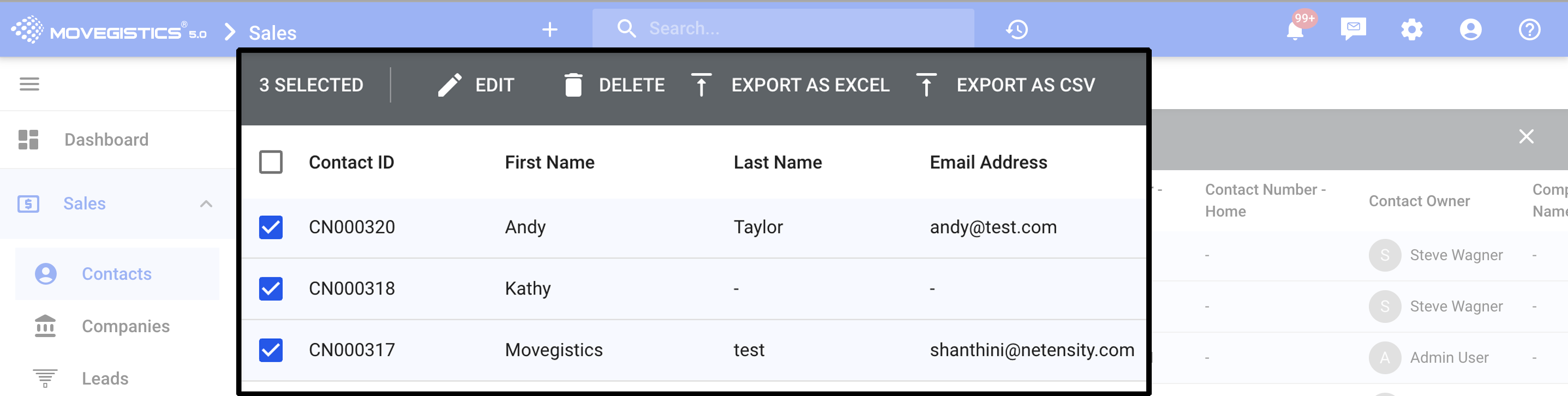
-
Use the checkboxes on the left to select multiple records.
-
Click the “Batch Actions” dropdown menu.
-
Choose an action such as Delete to remove the selected records.
.
.
Conclusion
By following these steps, you can efficiently manage records within Movegistics 5.0. Whether adding new records, updating details, or deleting unnecessary entries, these processes ensure your data remains accurate and up to date.
For further assistance, visit our Help Center or contact customer support at support@netensity.com.
Comments
0 comments
Article is closed for comments.